
Getting Started
Creating your CSS Launcher Account
A guide on creating and confirming your CSS Launcher account.
Account tab
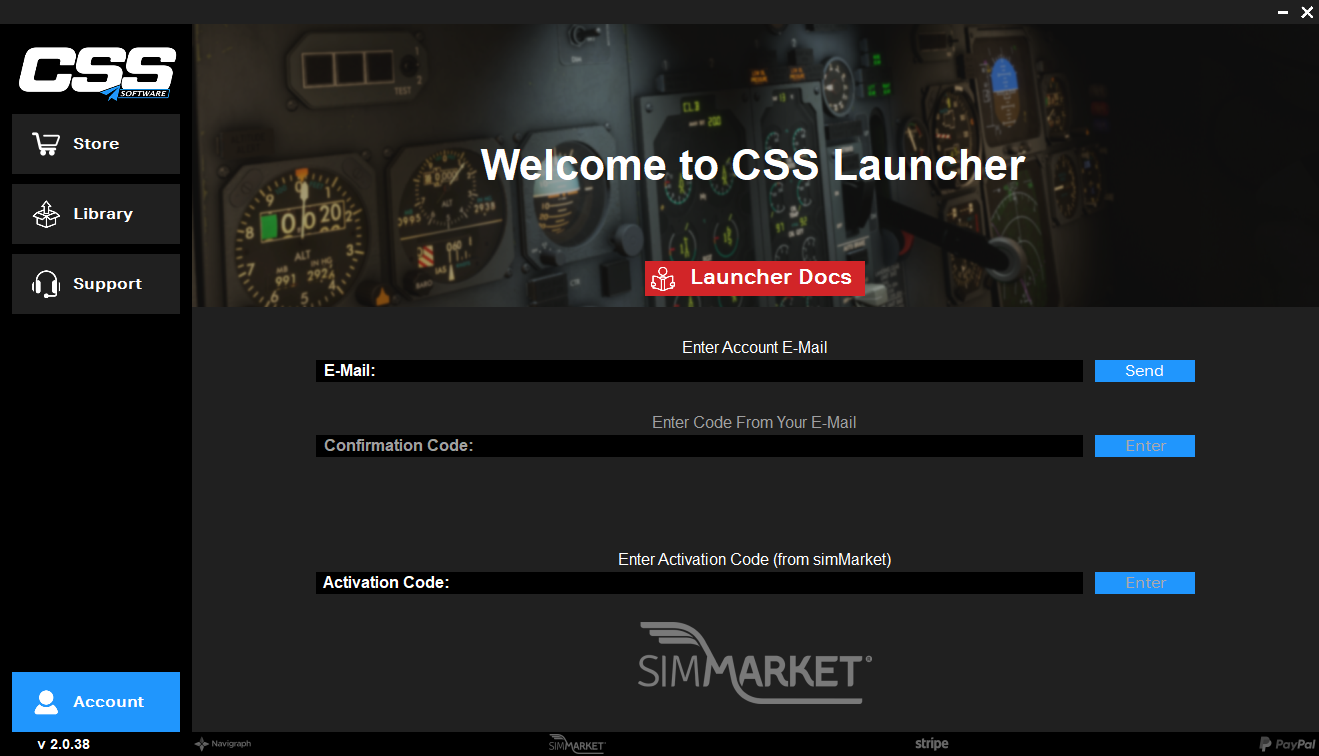
After installing the CSS Launcher, you will be greeted with the Account tab. This is the only available tab until your CSS Account is created.
Article media
Creating your CSS Account
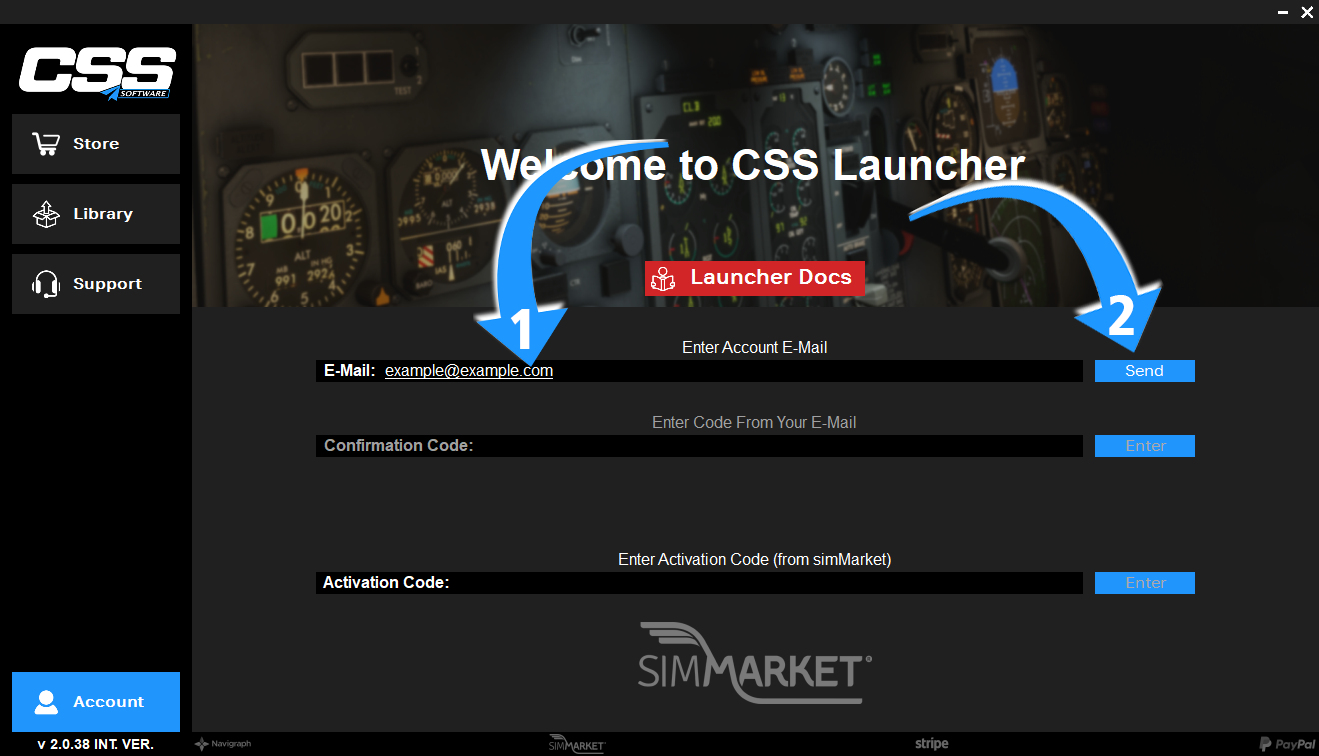
To sign up, enter your e-mail address into the E-Mail field and press Send.
We highly recommend you to only use popular email providers e.g. gmail, hotmail and others, as some smaller email providers have filters which would prevent you from recieving the confirmation email.
If for whatever reason you encounter issues or errors during this step, please contact Support using the Contact Us form or by sending an email to support@css.aero.
Article media
Confirming your CSS Account
A single-use Confirmation Code will be sent to your e-mail address.
Paste the Confirmation Code into the Confirmation Code field and press Enter.
Your account will now become active, and you will be able to access the Store, Library and Support tabs of the CSS Launcher, as well as the Activation Code field to activate a product code from one of our Partner stores.
Related articles
Browse similar articles
Need support?
Open the CSS Support Center
Source: CSS Launcher User Manual, Rev. 5 — December 2025.